Locking & backups
Protect the presets you'd be annoyed to lose, and undo an overwrite with one click.
Locking
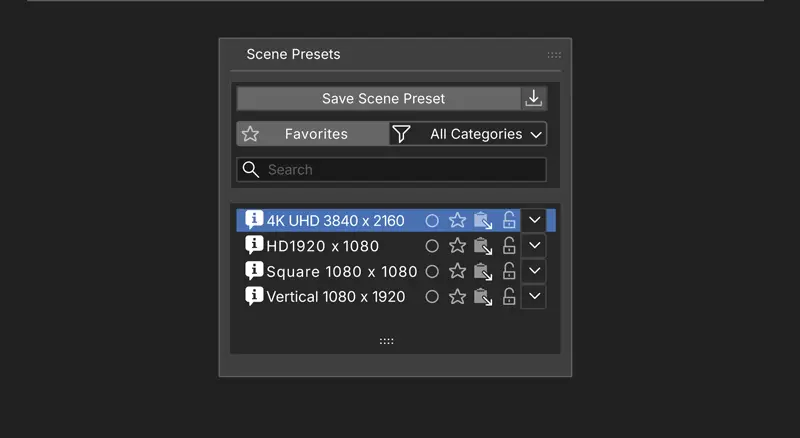
Click the lock icon on a preset. A locked preset can't be overwritten or deleted until you unlock it. Use it on the setups you'd be annoyed to lose.
Deleting
Alt-click the lock icon, or use the preset's actions menu. Deleting asks for confirmation, and a locked preset won't delete until it's unlocked — two deliberate actions, so an accidental Alt-click costs nothing. Deleted a preset by mistake? Undo Delete restores it from the actions menu.
Updating an existing preset
Update Preset overwrites the selected preset with the scene's current settings. Turn on Auto-Backup on Update in preferences and every overwrite keeps the version it replaced in a backups folder. Restore Previous Version in the actions menu swaps it back — and restoring again swaps forward, so a mis-click is always one click from undone.